Ksenia Kartamysheva
 For many professional services teams, project proposals live outside the system used to deliver the work. Scope is documented in spreadsheets, pricing is managed separately, and important details often need to be entered multiple times. Quotes brings proposal creation into Birdview PSA, helping teams define scope, add services, and create professional client proposals in one place. Instead of managing proposals in separate documents or spreadsheets, you can keep quoting, project planning, and billing connected in one place.Quotes are currently available through Feature labs for all Birdview PSA plans.
Why it matters
Quotes help service teams align sales, delivery, and finance before work begins. For clients, a quote clearly explains what they will receive and how much it will cost. It helps set expectations around project scope, pricing, and deliverables. For your internal team, a quote helps organize project requirements, pricing, and client expectations before delivery begins.
Start from a project template
Creating proposals for similar projects often means copying information from previous projects or rebuilding the same quote repeatedly.With Quotes, you can create a quote directly from a project template. Birdview automatically generates quote line items from the template’s tasks and planned billable expenses, helping teams prepare proposals faster while reducing manual data entry.
A more connected quote-to-cash workflow
Together, Quotes and Invoicing help teams manage proposals and billing in one platform. This creates a more connected workflow from project proposal to invoicing while reducing the need to manage information across multiple tools.
What you can do with Quotes
With the first release of Quotes in Birdview PSA, you can:
- Create project quotes directly in Birdview PSA
- Create quotes from project templates with fixed-fee tasks, T&M items, and expenses pre-populated automatically
- Add custom line items from the Products and Services library
- Add taxes and discounts
- Preview quotes before sending them to clients
- Print or save quotes as PDF documents
- Email quotes to clients as an online link
- Track and manage quotes in a dedicated Quotes tab
- Filter, sort, and manage quotes from the Quotes tab
How it works
First, go to the Feature labs to enable Quotes for your account.
A small navigation update
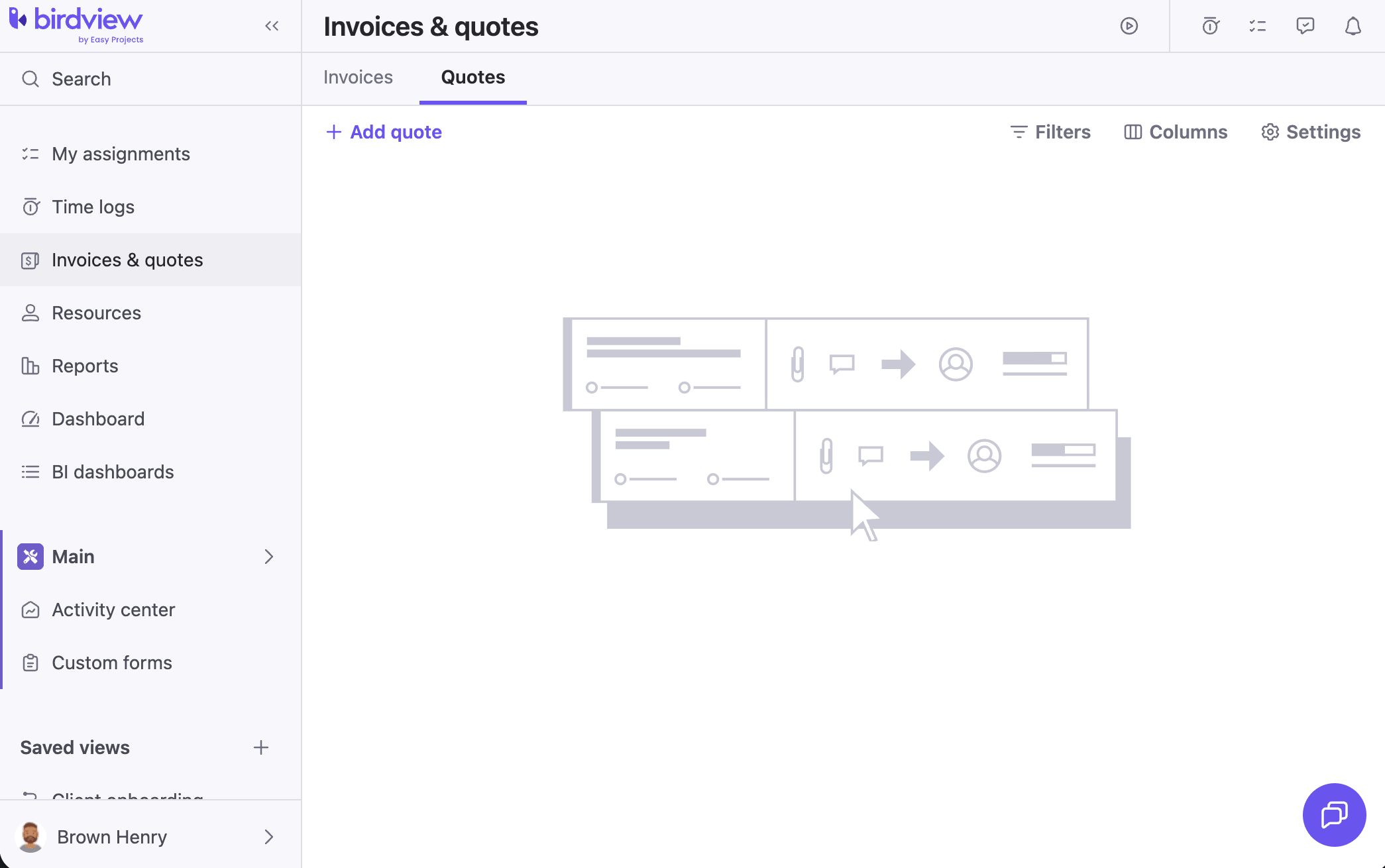
As part of this release, the existing Invoices section in the left-side menu has been renamed to Invoices & quotes.You’ll continue to find all your invoices there, and you’ll now see a dedicated Quotes tab alongside Invoices for managing project proposals.
1. Open the Quotes tab
To start working with Quotes, open the Invoices & quotes section in the left-side menu.Inside this section, you’ll see two tabs:
- Invoices
- Quotes
Open the Quotes tab to view existing quotes or create a new one.
2. Create a quote from scratch
Click the Add quote button to create a new quote. Start by adding the general quote details, including the client, quote name, pricing, and tax information. Next, add the services or deliverables included in the quote. You can select services from your existing catalog or enter them manually. Each quote line can include information such as the service name, description, quantity, price, tax, and total amount.This option is ideal when creating a unique proposal or when the work doesn’t follow a predefined project structure.

3. Create a quote from a project template
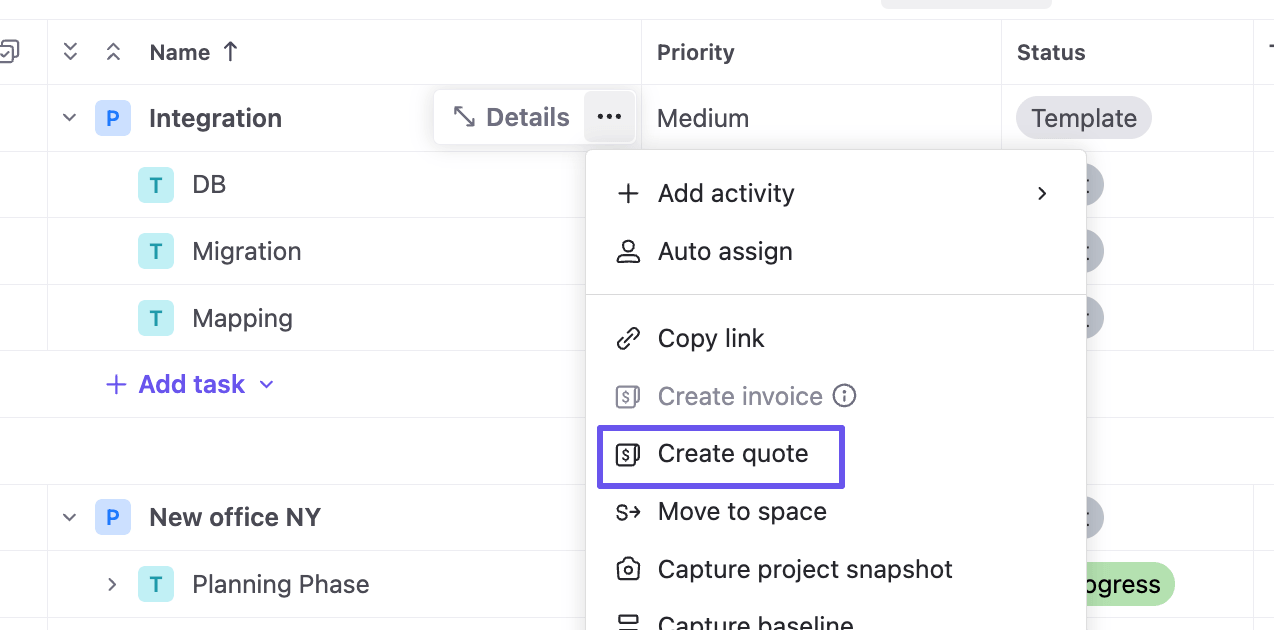
If your team regularly delivers similar projects, you can create a quote directly from a project template instead of building it from scratch. Navigate to the Activity center and filter the project list to show only Templates. Open the context menu for the template you want to use and select Create quote. Birdview automatically creates a new quote and generates quote line items based on the tasks and planned billable expenses included in the template. This helps reduce manual work and speeds up proposal creation for recurring services and standard project offerings. Once the quote is generated, you can review and adjust the services, pricing, taxes, and other details before saving and sending it to your client.
4. Review and customize the quote
Whether you create a quote from scratch or from a project template, you remain fully in control of the final proposal. Review the services, pricing, taxes, and other details before sending the quote to your client. You can make any necessary adjustments and preview the final document to ensure everything looks correct.
5. Apply taxes
Once the quote lines are added, you can apply taxes at the quote level or line level, depending on your setup.
6. Preview the quote
Before sending the quote to your client, preview it to make sure everything looks correct. You can review the layout, pricing, totals, and client-facing details before finalizing the document.

7. Send or save the quote
When the quote is ready, you can send it to the client, print it, or save it as a PDF. This keeps the proposal process inside Birdview and reduces the need to create separate documents outside the platform.

8. Manage quotes from the list view
All quotes are available in the Quotes tab.From the quote list, you can filter, sort, and review quotes by customer, project, status, date, and other details. You can also use the summary bar to review quote information and quickly track active proposals.