Ksenia Kartamysheva
 Excel project management works when delivery is simple, the team is small, and one person can still keep the whole picture in their head. It starts to break when projects share resources, budgets need closer control, and leaders need current answers instead of yesterday’s spreadsheet.
Many service teams start in Excel because it is easy to open, easy to edit, and already available. The problem is not that spreadsheets are bad. The problem is that they were not built to run a growing delivery operation.
That is where the shift to PSA software for service organizations usually begins. Teams are not looking for a shiny new tool. They are trying to fix planning gaps, reporting delays, and delivery confusion that spreadsheets can no longer handle.
This article explains when Excel project management stops working, what problems spreadsheets create, and how PSA software helps service organizations plan resources, track delivery, and improve financial visibility.
When Excel project management stops working
Excel works for small teams, simple projects, and lightweight tracking. It starts breaking when you need real-time visibility, resource planning, and reliable reporting across several clients, teams, or delivery streams.
There is a good reason teams start with spreadsheets. They are low-cost, flexible, and require almost no setup. A manager can build a project list in an hour, add a few status colors, and start working right away.
That early flexibility is useful. It lets teams create their own process before they know exactly what they need. For a handful of projects, that can be enough.
From experience, the spreadsheet is rarely the real system. It becomes the patch for a process nobody designed.
The trouble starts when the business grows, but the operating model stays the same. The spreadsheet becomes the process, the report, and the system of record, even though it was never designed for that role.
At that point, common project management spreadsheet problems start showing up fast:
- No real-time updates
- Version control issues
- Manual reporting
- No portfolio view
- No dependable resource planning
One line I hear often from teams in this stage is simple: “Doing it through spreadsheets is not quite keeping up.” That is usually the moment when the problem becomes operational, not just inconvenient.
The real problems with managing projects in Excel
The biggest issue with Excel is not the file itself. It is the fact that spreadsheets force teams to manage a connected delivery system through disconnected documents.
No resource visibility across projects
Resource planning in Excel is usually manual, local, and incomplete. One project manager has one file. Another manager has another. A team lead has a third version for staffing. No one sees the full picture.
That creates an obvious problem. You cannot answer basic questions with confidence:
- Who is available next month?
- Who is already overbooked?
- Which skills are the real constraints?
- Can we take on this new project without hurting delivery?
A common breaking point looks like this: a 40-person services team realizes the issue when two project managers assign the same solution architect to different client projects in the same week. No one sees the conflict until deadlines start slipping.
Without a real capacity view, managers start planning from memory. They keep allocations in their head, in Slack, or in side notes outside the spreadsheet. That works until two projects need the same person at the same time.
Then double-booking happens. Deadlines slip. Context switching rises. Teams feel overloaded even when the issue is really poor allocation visibility.
Reporting is manual and always outdated
Spreadsheet reporting is rarely wrong because people are careless. It is wrong because the process is too manual.
The reporting cycle often looks like this: export, clean, combine, check formulas, rebuild charts, and send the file. Then someone changes the source data an hour later, and the report is already out of date.
That delay matters. Leaders make staffing and delivery decisions based on last week’s numbers, not today’s reality. Finance sees one picture. Delivery sees another. Executives stop trusting dashboards because they know the reporting chain is fragile.
This is one of the most expensive spreadsheet problems. Not because reporting takes time, but because slow reporting leads to slow decisions.
In practice, the difference is simple. In Excel, reporting means exporting data, cleaning it, and rebuilding the same charts every time. In a PSA system, the same report updates automatically because the data is already connected.
The time difference is significant. A weekly report that takes 4 hours in Excel can drop to 20 minutes when the data lives in one system.
No single source of truth
A spreadsheet can store data, but it does not create a single source of truth on its own.
Once teams start copying files, exporting tabs, or keeping separate versions for sales, delivery, and finance, the same project exists in several places. A project start date changes in one file but not another. A budget update reaches finance but not delivery. Resource plans drift apart.
Now the team is not just managing projects. It manages data inconsistency.
This creates silo behavior without anyone intending it. Each function starts trusting its own sheet more than the shared process. That is when alignment starts to fall apart.
Financial tracking is disconnected
Projects are not just timelines. They are also revenue, cost, time, margin, and utilization.
In Excel, those pieces are often tracked separately. That makes real profitability tracking difficult. You may know the billed amount, but not the actual delivery cost. You may know hours worked, but not whether the project is still financially healthy. You may know revenue, but not whether the right people are spending time on the right work.
When time, cost, and revenue are disconnected, project decisions become reactive. Teams notice margin problems late, often after the work is already done.
Signs your team has outgrown Excel project management
The easiest way to know whether Excel is still enough is to look at how much coordination happens outside the file.
You have likely outgrown Excel project management if these points sound familiar:
- You manage resources in your head
- You do not know who is available next month
- Reporting takes hours or days
- Projects are tracked one by one, not as a portfolio
- Finance and delivery numbers do not match
- You rely on several tools just to answer one question
- Project status depends on chasing people for updates
- Every major report requires manual cleanup
- Resourcing decisions are based on gut feel, not capacity data
- You use Excel, CRM, email, and chat together to run one workflow
None of these problems means your team is failing. They usually mean the business has become more complex than the spreadsheet model can support.
What changes when you move from Excel to PSA software
PSA software connects projects, resources, time tracking, and financials in one system so teams can manage delivery with real-time visibility and stronger control.
This does not mean every problem disappears overnight. It means the operating model changes. The team stops updating isolated files and starts working inside a shared system.
From static plans to real-time project visibility
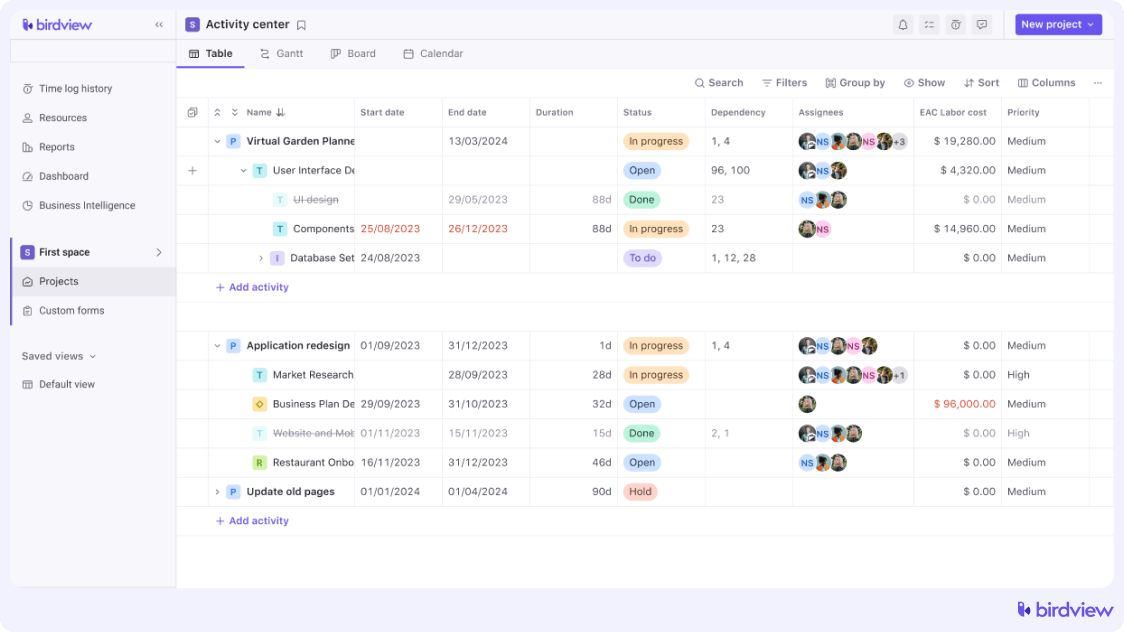
A spreadsheet shows a snapshot. A PSA system shows a live view of project status, progress, and timelines.
Instead of chasing updates or merging files, teams work from one shared source that reflects the current reality.
From manual allocation to resource planning with capacity
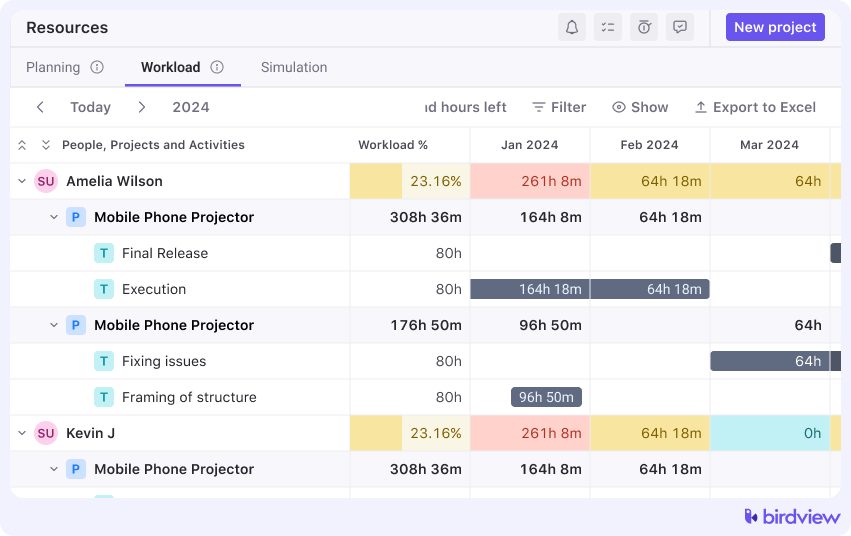
Resource planning shifts from guesswork to capacity-based decisions.
You can see who is available, who is overloaded, and what skills are constrained before assigning work. This reduces double-booking and improves planning accuracy.
From disconnected data to a single source of truth
PSA brings project, resource, and time data into one consistent system.
Teams no longer rely on separate files or versions, which reduces confusion and improves trust in reporting.
From spreadsheets to integrated delivery and financial tracking
Projects, time, cost, and revenue are connected, not tracked separately.
This makes it easier to monitor budgets, understand performance, and catch financial issues earlier.
Birdview PSA is one example of this approach, combining visibility, resource planning, and financial tracking in one environment.
Spreadsheet vs PSA: what’s the difference in practice
The best way to understand the shift is to compare how the work actually happens.
| Area | Excel | PSA |
| Resource planning | Manual updates, side notes, and manager memory | Live capacity and workload visibility |
| Reporting | Exports, cleanup, and rebuilt charts | Dashboards and current operational data |
| Portfolio view | Usually separate files or tabs | Built-in cross-project visibility |
| Financial tracking | Separate spreadsheets or disconnected tools | Linked project, time, and financial data |
The point is not that Excel has no value. It is that a PSA system is designed to manage connected operational data, while a spreadsheet is designed to store and manipulate cells.
How to migrate from Excel to PSA (step-by-step guide)
A good migration is not about moving every cell into a new tool. It is about deciding what your delivery system actually needs to track and how people should use it.
Step 1: Define what you actually track today
Start by listing the core data you manage now.
Most teams track some mix of these:
- Projects
- Resources
- Time
- Budgets
- Revenue
- Statuses
- Forecasts
Do not assume all of this belongs in the new system exactly as it exists today. First, identify what is active, useful, and trusted.
Step 2: Clean your spreadsheet data
Most spreadsheet environments contain duplicates, outdated project names, inconsistent status labels, and partial staffing data.
Before migration, clean the basics:
- Remove duplicate records
- Standardize names and fields
- Fix obvious formatting inconsistencies
- Identify missing owners or missing dates
- Separate active data from archived data
Bad data imported into a PSA system stays bad, just in a more structured place.
Step 3: Map your processes, not just your files
This step matters more than most teams expect.
Do not only ask, “Which spreadsheet do we use?” Ask:
- How does a project get created?
- Who assigns resources?
- How are budgets updated?
- When is time reviewed?
- What reports do leaders actually need?
If you only migrate files, you preserve confusion. If you map workflows, you create a better operating model.
Step 4: Choose the right PSA structure
Now translate your process into a usable structure.
That usually means deciding:
- How projects, phases, and tasks should be organized
- Whether planning should use roles, named people, or both
- How billing models should be set up
- Which fields are required versus optional
- What teams need to see by default
This is where you avoid copying spreadsheet habits into the new system.
Step 5: Start with one workflow, not everything
A full migration in one wave sounds efficient, but it usually creates confusion.
Start with a pilot team, pilot project type, or core workflow. For example, begin with project planning and resource allocation before adding advanced reporting or financial controls.
That gives the team space to test structure, fix issues, and build confidence.
Step 6: Train teams based on roles
Not everyone needs the same training. Role-based onboarding works better than generic tool training because it connects the system to the person’s actual responsibilities.
Migration checklist (ready to copy)
Use this checklist as a practical starting point for moving beyond spreadsheets.
- Identify all spreadsheets currently used for project delivery
- Define key data fields for projects, resources, time, and budgets
- Clean and standardize source data
- Separate active records from archived records
- Map current workflows, not just files
- Define ownership for project, resource, and financial data
- Select a PSA tool that matches your delivery model
- Run a pilot migration with one team or workflow
- Train users by role
- Validate reporting accuracy before wider rollout
- Review resource planning logic after the pilot
- Retire duplicate spreadsheets once the system is trusted
Worksheet: Prepare your Excel data for PSA migration
This worksheet helps teams turn a messy spreadsheet environment into a usable migration plan.
1. List your current files
Write down every file that plays a role in delivery.
Include files used for:
- Project lists
- Staffing plans
- Time tracking
- Budget tracking
- Revenue or billing reports
- Executive reporting
For each file, note the owner, purpose, update frequency, and whether the data is trusted.
2. Define your key data types
Group your data into four categories:
| Data type | Key fields to define |
| Projects | Project name, client, start date, end date, stage, status, project manager |
| Resources | People, roles, teams, skills, availability, utilization targets |
| Time | Planned hours, actual hours, approval status, billable status |
| Financials | Budget, cost, billing model, revenue, margin, invoicing status |
This step helps you see whether the same field exists in several places with different values.
3. Identify your gaps
Most spreadsheet environments have missing pieces. Common gaps include:
- Missing time data
- Unclear ownership
- No standard status definitions
- Inconsistent role names
- No link between effort and budget
- No shared capacity view
These are not just data problems. They are process problems, and they should be fixed before or during migration.
4. Define success metrics
A migration should solve operational problems, not just move data.
Pick a few measurable outcomes, such as:
- Utilization visibility across teams
- Reporting speed for weekly leadership reviews
- Forecast accuracy for staffing decisions
- Reduction in manual reconciliation
- Improved match between finance and delivery data
These metrics help you judge whether the new system is actually working.
Common mistakes when moving from Excel to PSA
Most migration issues come from trying to preserve spreadsheet habits inside a new platform.
Trying to replicate spreadsheets exactly
If the goal is to rebuild every tab and formula, the team usually misses the value of PSA. The better goal is to support the workflow, not copy the file.
Migrating bad data
Old duplicates, broken status labels, and incomplete resource records create problems from day one. Clean first, then migrate.
Overloading the system from day one
Too many fields, dashboards, and process rules at launch make adoption harder. Start with what teams need to operate well.
Ignoring the resource planning setup
Many teams focus on project setup and leave resource logic for later. That is a mistake. Resource planning is often the main reason to replace spreadsheets for project management in the first place.
Not defining ownership of data
A system works better when people know who owns project status, who owns staffing updates, and who owns financial fields. Without ownership, data quality drops quickly.
When to move to PSA (and when Excel is still enough)
Excel is still enough when the work is simple and shared coordination is limited.
That is often true if you have:
- Fewer than 5 active projects
- No shared resources across projects
- No serious forecasting need
- Minimal financial tracking requirements
- One manager who can still see everything clearly
A PSA system becomes necessary when delivery complexity starts affecting decision quality.
That usually means:
- Multiple projects compete for the same people
- You need forecasting, not just tracking
- Financial tracking affects delivery choices
- Leaders need a portfolio view
- Reporting needs to be current, not rebuilt manually
- You want consistent operations across teams
The right time to move is not when spreadsheets become annoying. It is when they start hiding operational risk.
If your team is already asking who is free, which project is slipping, or why delivery and finance numbers do not match, you are likely past the point where Excel alone is enough.
FAQ: Excel project management and PSA migration
When should you stop using Excel for project management?
When delivery depends on shared resources, forecasting, and consistent reporting across projects. The key signal is complexity. If your team cannot quickly answer staffing, status, or financial questions, Excel is no longer enough.
Can Excel handle resource planning?
Only for small teams. Once people work across multiple projects, Excel cannot provide a reliable, real-time view of capacity and workload, which makes planning inaccurate.
Is migrating to PSA complicated?
It can be if you move everything at once or use unclean data. A focused rollout, starting with one workflow or team, is usually manageable and more effective.
What is the biggest risk in migration?
Treating it as a data transfer instead of an operating model change. Without clear ownership and processes, the same issues will continue in the new system.
Do you need PSA if you already use a PM tool?
Often yes. PM tools manage tasks, but PSA connects resources, time, budgets, and portfolio visibility, which is critical for managing delivery operations.