Blog
Blog

Planning work across regions has always been tricky. What looks like a normal working day in one country might be a public holiday in another. It can lead to overloaded schedules, inaccurate capacity plans, and confusing time logs. To solve this, we‘ve released the Local public holidays feature. It helps teams plan work more realistically by accounting for regional holidays at the individual user level, without disrupting global project schedules.
Why it matters
As teams become more distributed, a single company-wide holiday calendar no longer reflects reality. Without local holidays accounted for, teams often run into issues such as:
- Resources appear available when they‘re actually off
- Overloaded workloads caused by invisible non-working days
- Confusing or misleading time logs during local holidays
- Manual adjustments every time regional differences come into play
Local public holidays address these challenges by ensuring that each person‘s workload reflects their actual location, while keeping global project timelines intact. This means better capacity planning, fewer surprises, and more realistic expectations across regions.
How it works
The feature introduces region-aware holidays that apply only to users in specific locations, while preserving existing global holidays for company-wide non-working days.
1. Define public holidays by region
Click on your avatar in the bottom left corner, go to Company settings → System lists → Public holidays.
You‘ll now see a new Regions field:
- It includes all countries
- For the USA and Canada, you can also select specific states or provinces
- The field is optional and supports multiple selections
How it works:
- No region selected → the holiday is treated as global and applies to everyone
- One or more regions selected → the holiday applies only to users in those regions
This lets you maintain both company-wide holidays and region-specific ones in the same list.

2. Set user location details
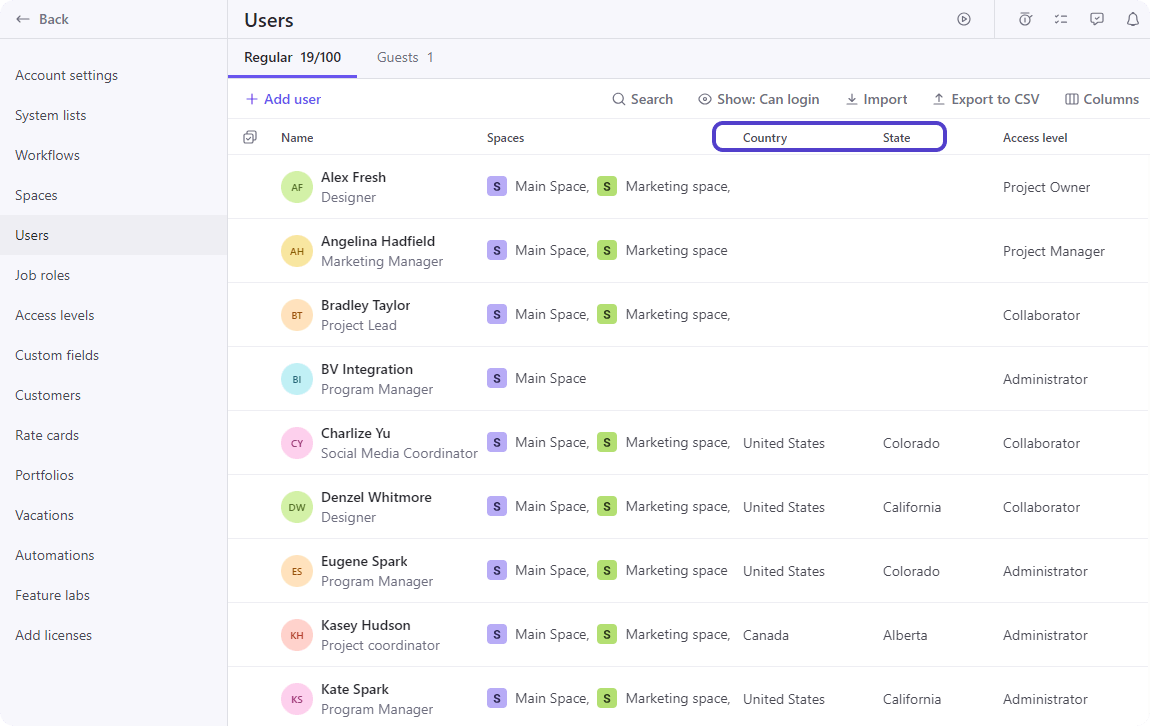
To support regional holidays, two new fields are available in User profiles:
- Country
- State (for applicable countries)
Go to Company settings → Users. Once these fields are filled in, the system can match users with the correct local holidays. If a user‘s region is updated later, workloads and time logs are recalculated automatically.
3. See the impact in Workload and Time tracking
When a local public holiday applies to a user:
- The day is excluded from that user‘s workload calculations
- Time logs on that day are highlighted in red
- Assignments show a 100% overload indicator for the holiday date
This makes it immediately clear that the user isn‘t actually available, even if the rest of the team is working that day.
Note: When working with local and global public holidays, it‘s important to note how they behave differently:
- Local holidays
- Affect only individual users
- Impact workload and time logs
- Do not change project or activity dates, dependencies, or scheduling logic
- Global holidays
- Act as company-wide non-working days
- Affect project and activity date
- Influence dependencies, durations, and date pickers