Ksenia Kartamysheva
These 12 prompts work in ChatGPT or Claude once either assistant is connected to Birdview PSA through MCP. They are grouped by role (resource managers, delivery leads, PMOs, and finance) and each one is labeled read-only or write. They cover workload, time off, project status, overdue work, portfolios, expenses, and bulk task changes. The assistant acts with your own Birdview permissions, and Birdview MCP is currently in beta.
Every prompt below maps to a capability Birdview documents for MCP today. Where a question sounds reasonable but the connector can’t answer it yet (invoices, margin, logging time), the article says so instead of offering a prompt that would fail.
What do you need before using these prompts?
You need the Birdview MCP connector enabled in ChatGPT or Claude, signed in with your own Birdview login. A workspace admin adds the Birdview MCP connector for ChatGPT and Claude once, then each person turns it on and authorizes it. The assistant then sees only the projects your Birdview role can see, and edits only what you can edit.
Each prompt carries one of two labels:
- Read-only prompts look things up and change nothing in Birdview.
- Write prompts create or change records. Each one asks the assistant to show a preview and wait for your confirmation.
In Claude, the connector settings let you limit Birdview MCP to read-only actions. That is a sensible way to run the first week, before anyone tries the three write prompts.
Why start with workload at all? Across 40+ Birdview discovery and demo calls between March 2025 and March 2026, about 80% of prospects said resource planning lived in spreadsheets. A Director of Professional Services at an IT consulting firm put it plainly: “I see 10 opportunities. I don’t know who’s available.” The first four prompts answer that question from live Birdview data.
Answers vary between runs and between ChatGPT and Claude, so treat the wording and layout as starting points and spot-check numbers in Birdview. Before anyone runs a write prompt, agree who may approve AI-made changes, in line with your approval rules for AI agents in a PSA.
Resource manager prompts: who is overloaded and who has room?
Resource managers get the most out of Birdview MCP, because workload, team time off, and public holidays are all readable for anyone you can see. Three prompts here are read-only; one creates a task.
R1. Check one person’s load (read-only)
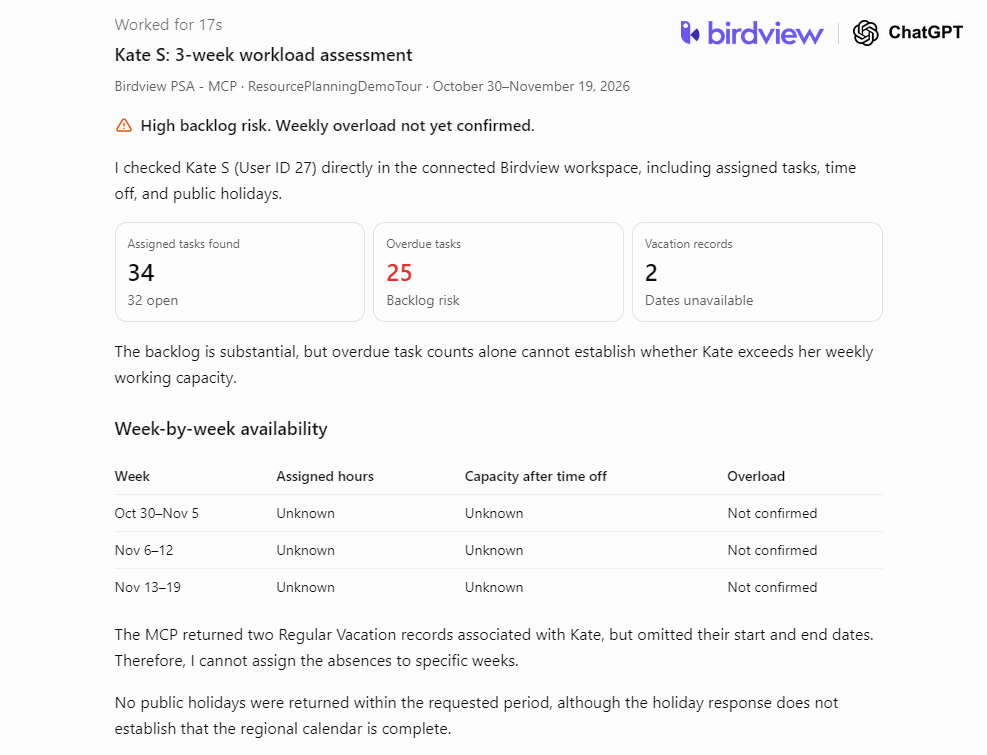
Is [Name] overloaded over the next 3 weeks? Account for their time off and public holidays, and show the workload week by week.
The assistant combines the person’s workload with time off and holidays for the period. A good answer gives one row per week and a plain yes or no. Ask for weeks, not a three-week total: a total can average away the one week that is booked at 130%.
R2. Find the thin weeks (read-only)
Show time off and public holidays for the [Team] between [start date] and [end date], and tell me which weeks have the least capacity.
This is the prompt to run before committing a start date to a client. Holidays differ by country, so a team split between Toronto and London can lose different days in the same week. Answers are only as good as the PTO and availability data people enter in Birdview.
R3. Compare candidates for new work (read-only)
Compare the workload of [Name], [Name], and [Name] for the next 4 weeks. Who has room for about 40 hours of work starting [date]?
R3 is an ad hoc comparison built from raw workload. It doesn’t weigh skills or roles. The AI resource assistant in Birdview PSA Enterprise does, and it sits one step higher on the assist, recommend, act scale: it recommends staff and a person approves. When the same staffing question comes up every week, Birdview’s resource matching workflow and resource planning views are the better home for it.
R4. Create a staffed task (write)
Create a task called "[Task name]" in [Project], assigned to [Name], due [date], estimated at [hours] hours. Show me what you will create before applying it.
A correct run shows the project, task name, assignee, due date, and estimate, then waits. If two projects share a similar name, ask the assistant to list both before it creates anything.
Delivery lead prompts: how is the project really doing?
Delivery leads use Birdview MCP to get a live project health check and to move batches of tasks without clicking through each one. Two prompts read; one changes task statuses in bulk.
D1. Project health in one answer (read-only)
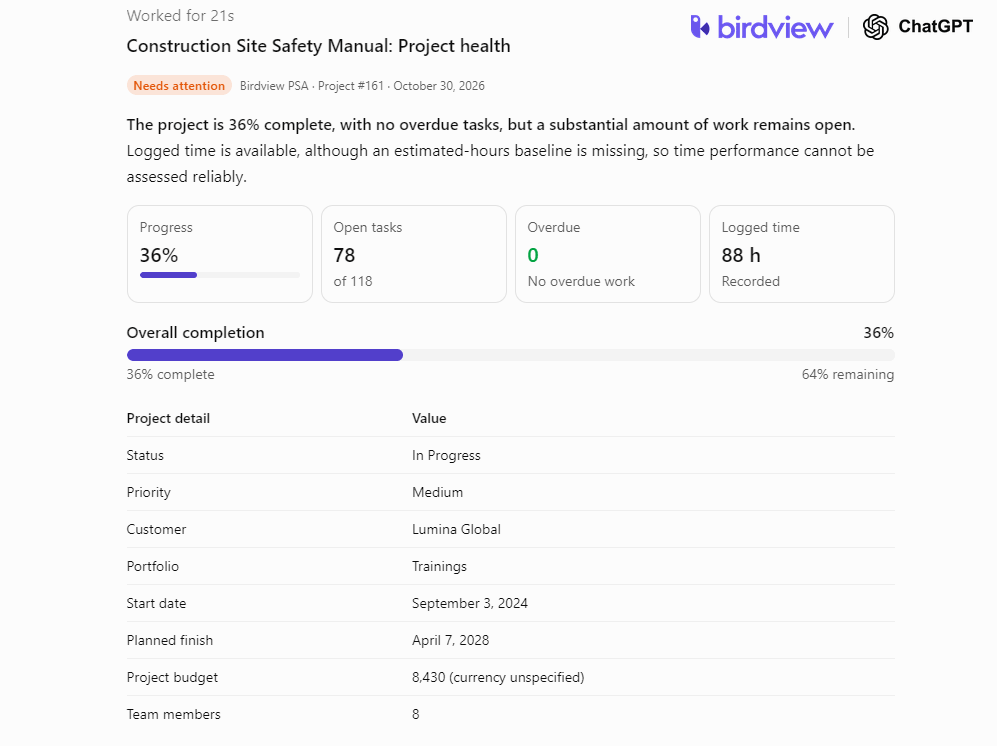
How is [Project] doing? Give me progress, overdue work, estimated versus logged time, and any risk indicators.
The health summary pulls progress, open and overdue work, estimated versus logged time, and risk indicators from project custom fields. If your projects don’t use risk fields, that part comes back empty, which is correct behavior. The output is a solid first draft of a weekly project status report, not the finished report.
D2. Overdue work by priority (read-only)
List the overdue tasks in [Project], grouped by priority, with due dates.
Birdview MCP has a dedicated overdue filter, so this prompt is fast and precise. Add a milestone name to narrow it before a client checkpoint.
D3. Bulk status change with a preview (write)
In [Project], find open tasks with status "[Status A]" and priority "[Priority]". Show me the matches, then change their status to "[Status B]" after I confirm.
Birdview MCP previews bulk changes, and any change touching more than 50 tasks needs an extra confirmation. Filter by status, priority, milestone, parent task, or custom field. Assignee isn’t among the documented task filters, so “move all of Dana’s tasks” may not match what you expect. Most teams hold bulk writes like D3 until week two of a 30-day rollout for AI agents in a PSA, after a read-only pilot week.
PMO prompts: what does the portfolio look like this week?
PMO leads can list portfolios, filter projects by portfolio, and push one standard task to every project in a portfolio at once. That last action is the biggest time saver in this library, and also the one most worth previewing.
P1. Portfolio status table (read-only)
List the portfolios I can access. For [Portfolio], show each project's status and risk indicators in a table.
Asking for a table matters here. Without it, most assistants return a paragraph per project, which is hard to scan once a portfolio passes 10 projects.
P2. Rank projects by overdue work (read-only)
Which projects in [Portfolio] have overdue tasks? Rank them by the number of overdue tasks.
The assistant finds the portfolio’s projects first, then runs the overdue filter on each. Treat the ranking as a conversation starter for the weekly review: 12 overdue tasks on a small internal project can matter less than 3 on a client go-live.
P3. One task across the whole portfolio (write)
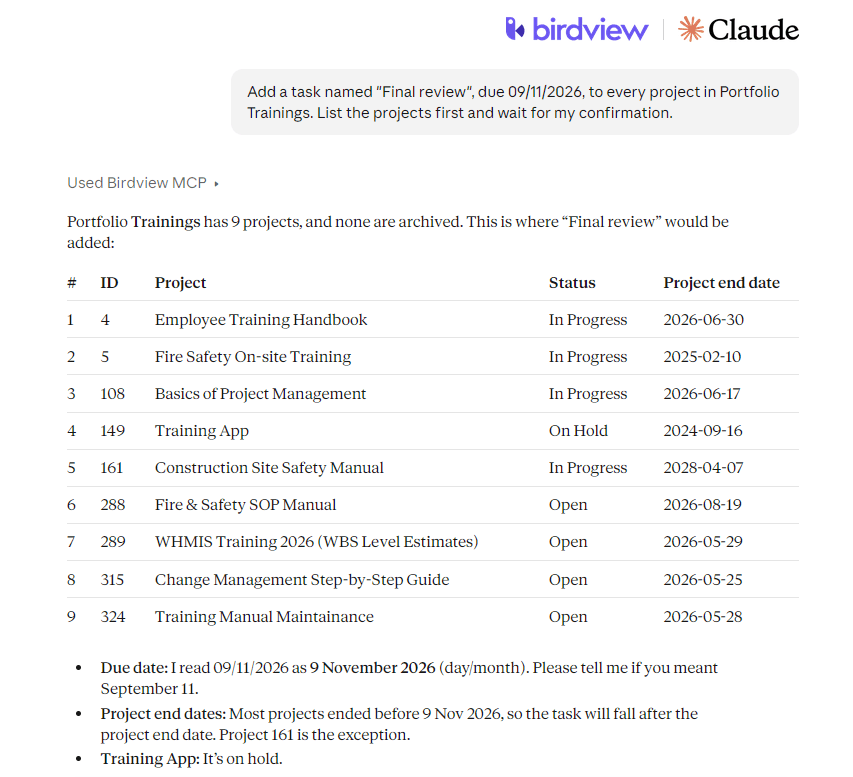
Add a task named "[Quarterly risk review]", due [date], to every project in [Portfolio]. List the projects first and wait for my confirmation.
Check the project list in the preview before confirming. If the portfolio still holds closed or on-hold projects, check whether they appear in the list and remove them before you confirm.
Chat answers are snapshots. When the same portfolio view is needed every Monday, a saved view in Birdview reports and BI dashboards is faster and more consistent; these PMO dashboard examples show what a standing version looks like.
Finance and admin prompts: expenses and hours against estimate
Finance gets two read-only prompts, because Birdview MCP exposes project expenses, payments, and estimated versus logged hours, not billing data. Both are useful for month-end checks before invoicing starts.
F1. Expenses and payments on a project (read-only)
Show expenses on [Project] from [start date] to [end date], and what has been paid so far.
The answer lists project expenses for the period and the payments recorded against them. It reports what has been paid, not what is outstanding, so compute open balances from Birdview itself. Results include only expenses already entered against the project, and late entries are the usual reason a total looks low, a common gap in expense tracking with PSA software.
F2. Which projects are running over estimate (read-only)
For [Project A], [Project B], and [Project C], compare estimated and logged time and tell me which are trending over their estimates.
F2 works in hours, not dollars. A project at 85% of estimated hours with a third of its scope left is the early warning finance wants before it becomes a write-off.
How do you write your own Birdview MCP prompts?
Name the exact record, the date range, and the output format, and for any change, ask for a preview first. Vague prompts force the assistant to guess which project or week you mean, and guesses are where wrong answers start.
- Use real names. “The Client A rollout” works only if a project is called that. Paste the project or portfolio name as it appears in Birdview.
- Give dates. “Next sprint” means nothing to the API. “November 2 to November 13” does.
- Ask for a table whenever you compare more than three people or projects.
- For writes, say “show me first.” Then read the preview line by line.
- Ask what it couldn’t find. Ending with “list anything you couldn’t access” surfaces permission gaps instead of hiding them.
What can’t these prompts do?
These prompts can’t log time, submit expenses, or reach beyond your own Birdview permissions. Birdview MCP is a beta connector built on Birdview’s public API, not an AI of its own: ChatGPT or Claude does the reasoning, and MCP gives it permission-scoped access to read and write.
Two practical limits catch teams early. First, assistants don’t refresh the connector’s tool list on their own, so new Birdview MCP capabilities appear only after you reconnect. Second, the answers are only as accurate as the data behind them, which is the context problem every AI agent runs into.
The three write prompts sit at the “act” level of agentic PSA: the assistant makes the change, and a person approves it first.
Where to start
Start with three prompts: R1 for one person’s load, D1 for one project’s health, and P1 for one portfolio. All three are read-only, and together they show in one sitting whether chat answers match what your team sees in Birdview.
The examples in this article use the Birdview Professional Services edition. To try them on your own data, start a 14-day trial of Birdview Professional Services and connect your assistant, or book a demo to see the prompts run alongside Birdview AI inside the product.
FAQ
What can you ask ChatGPT or Claude about your PSA through MCP?
With Birdview MCP, ChatGPT or Claude can report project health, overdue tasks, portfolio contents, individual and team workload, time off, public holidays, and project expenses and payments. It can also create tasks and projects and update task status, dates, and estimates, one at a time or in bulk. It cannot log time, submit expenses, or read billing rates, invoices, or margin.
Is it safe to let an AI assistant edit project data through MCP?
Birdview MCP signs in as you, so the assistant can change only what your Birdview role already allows. Bulk changes show the matched tasks before anything is applied, and changes affecting more than 50 tasks need a second confirmation. Teams new to MCP can restrict the Claude connector to read-only actions until approval rules for AI changes are agreed.
Do the same prompts work in both ChatGPT and Claude?
Yes. Birdview MCP follows the open MCP standard, so one prompt reaches the same Birdview tools from either assistant. Answer wording and layout differ by assistant and model, and ChatGPT sometimes needs you to name the Birdview connector in the chat before using it. Other MCP-compatible clients can connect too, though some need a manually registered OAuth client.