Ksenia Kartamysheva
 Birdview MCP connects your ChatGPT or Claude assistant directly to your Birdview workspace. You can ask how a project is doing, find overdue work, update tasks, and check team workload without opening Birdview, and the assistant acts using your own permissions, not a wider view of the account.
Please note that Birdview MCP is in beta. We’re starting with the workflows professional services teams lean on most, such as project status, portfolios, tasks, workload, and expenses, and we’ll keep building from there. If there’s a workflow you’d love to see it handle, we want to hear about it: send us your suggestions and ideas at [email protected], and help shape what we build next.
Why it matters
Most status updates today mean opening Birdview, clicking into a project, and piecing together hours burned, overdue tasks, and workload across a few screens. Birdview MCP moves that work into the conversation you’re already having with your AI assistant, and it can act on what it finds, not just report on it.
- Faster answers. Ask “how’s the Client A rollout going?” and get progress, overdue work, and estimated versus logged time, pulled live rather than from last week’s report.
- Real capacity checks. Ask “is Dana overloaded next sprint?” and get an answer that accounts for vacations and holidays, not a guess.
- Less repetitive clicking. Create tasks, move work through your statuses, shift dates, re-estimate hours, or add a task to every project in a portfolio, all from the same conversation.
- Access to your data only. The assistant signs in as you, so it only sees the projects you have access to and can only edit what you’re able to edit yourself.
- No guessing at missing data. If a number isn’t available under your permissions, or an action isn’t supported, it says so instead of reporting a zero or a change that didn’t stick.
Birdview MCP is built on Birdview’s public API. It’s a translation layer between your AI assistant and that API, not a separate system with its own rules or its own view of your data.
What’s available now
- Project status: health summaries with progress, open and overdue work, estimated versus logged time, and risk indicators drawn from your project custom fields. Search projects and browse customers.
- Portfolios: list portfolios and open one by ID to see its name, parent portfolio, description, and status. Filter projects by portfolio, see a project’s portfolio as part of its context, assign a portfolio when you create or update a project, and add the same task to every project in a portfolio at once.
- Task search and filtering: by project, status, priority, milestone, parent task, last-modified date, or custom field, described in plain language, plus a dedicated overdue-task filter. Searching by customer or portfolio works by finding the matching projects first, then searching their tasks.
- Task and project changes: create tasks with assignees, dates, estimates, and custom fields; create projects with dates, a customer, and a portfolio. Update a task’s status, priority, category, dates, estimate, remaining time, and progress. Apply the same change across many matching tasks, or add one task to every project in a portfolio at once. Bulk changes can be previewed first, and anything affecting more than 50 tasks needs an extra confirmation before it’s applied.
- Resource and capacity planning: your own workload, anyone’s workload, team time off, and public holidays for a given period.
- Expenses and payments: read-only search of project expenses and what’s been paid.
Not yet supported: submitting expenses or logging time, and anything outside the areas above. If you need something this doesn’t cover, reach out to support.
How it works
Setup takes a few minutes and depends on whether you’re connecting a personal ChatGPT or Claude account, or a corporate one.
If you use a corporate ChatGPT or Claude account
Only a workspace admin can add the connector for the first time. Once it’s added, everyone else on the account can turn it on for themselves; each person then authorizes with their own Birdview login, so permissions stay individual.
- Admin adds the connector. In the workspace’s connector or plugin settings, add a custom connector pointing to your Birdview MCP endpoint: https://{your-account}/services/mcp. Set authentication to OAuth.
- Everyone else turns it on. The connector now appears in each teammate’s plugin or connector list. They enable it and sign in with their own Birdview credentials, the same way they’d log in to Birdview directly.
- Start asking. No further setup is needed after that first sign-in.
If you use a personal ChatGPT account
1. Open Settings → Apps & Connectors (in ChatGPT, this currently requires turning on Developer Mode in the plugin settings to expose custom connectors).
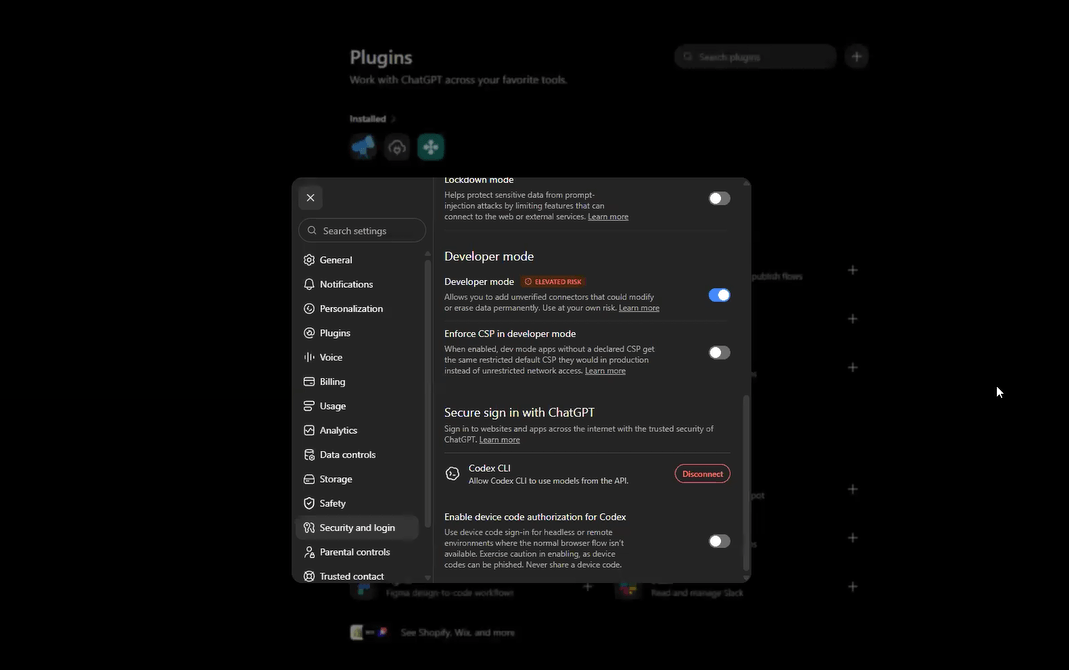
2. Choose Add → Custom connector.
3. Enter the server URL: https://{your-account}/services/mcp.
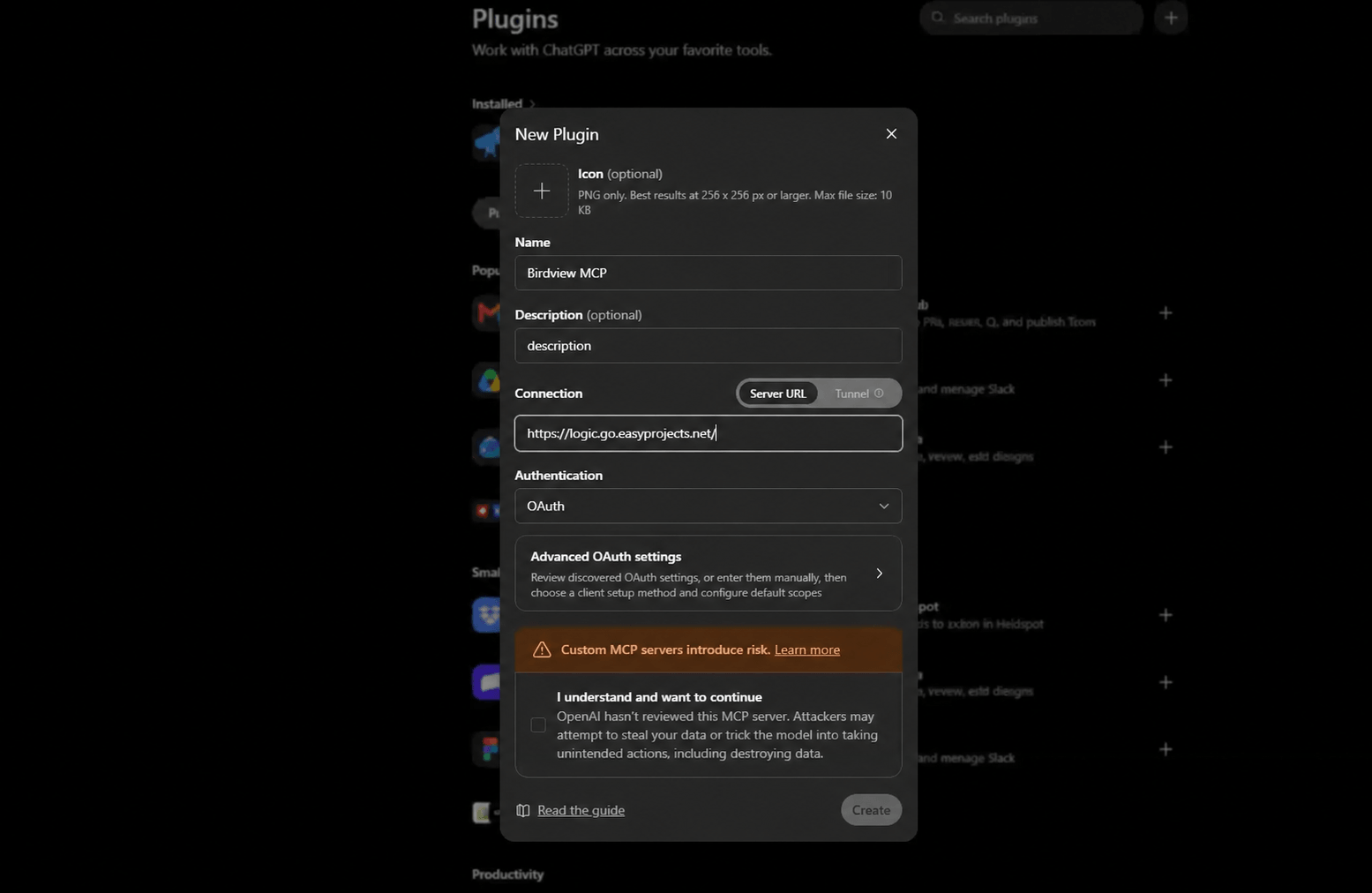
3. Set authentication to OAuth and continue.
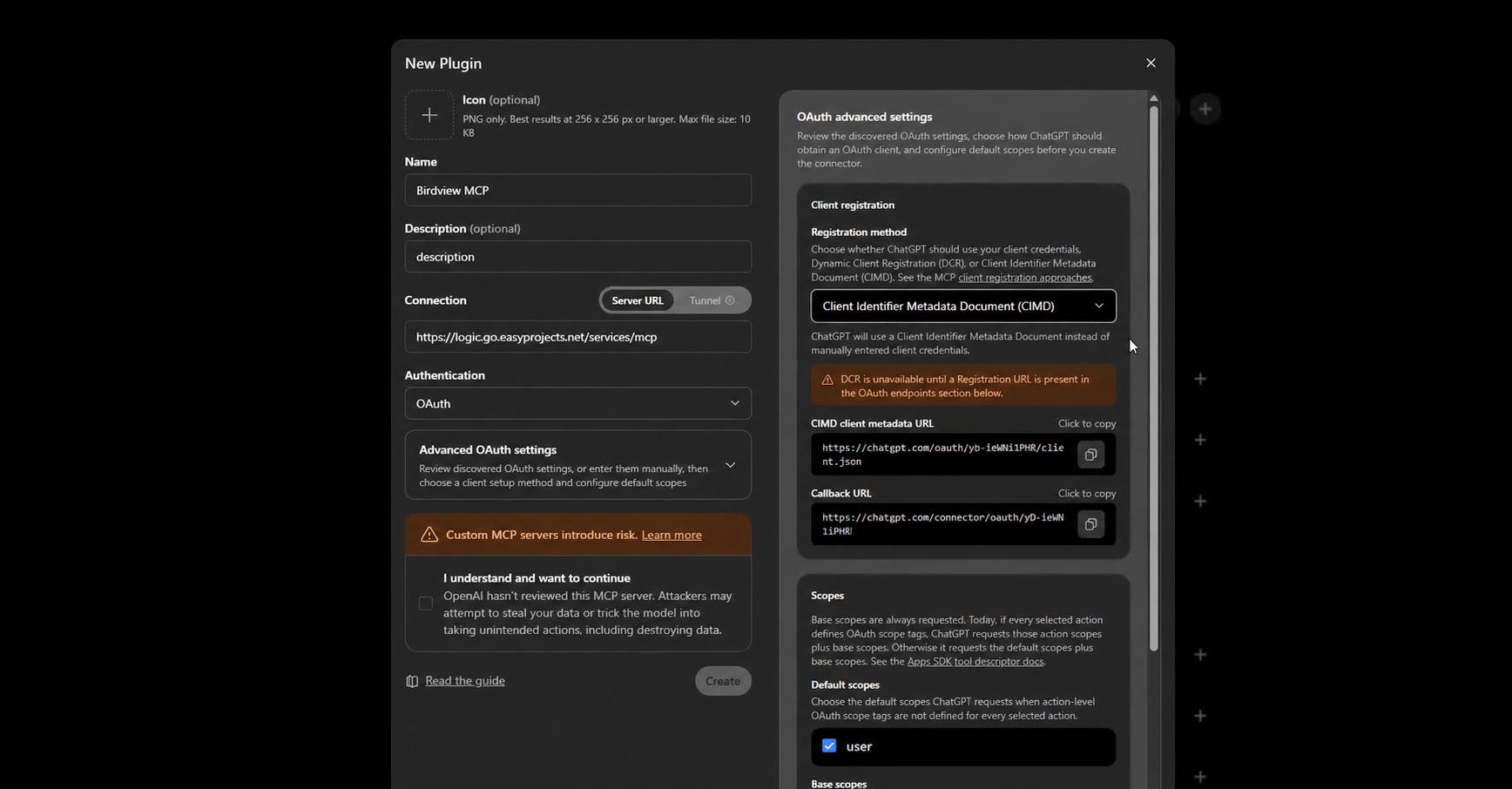
4. Sign in with your Birdview account and approve the consent screen.
5. In a chat, either select the Birdview connector directly or just ask a question; if the assistant doesn’t pick it up automatically, tell it explicitly to use the Birdview MCP server.
If you use a personal Claude account
1. Open Settings → Connectors.
2. Choose Add custom connector.
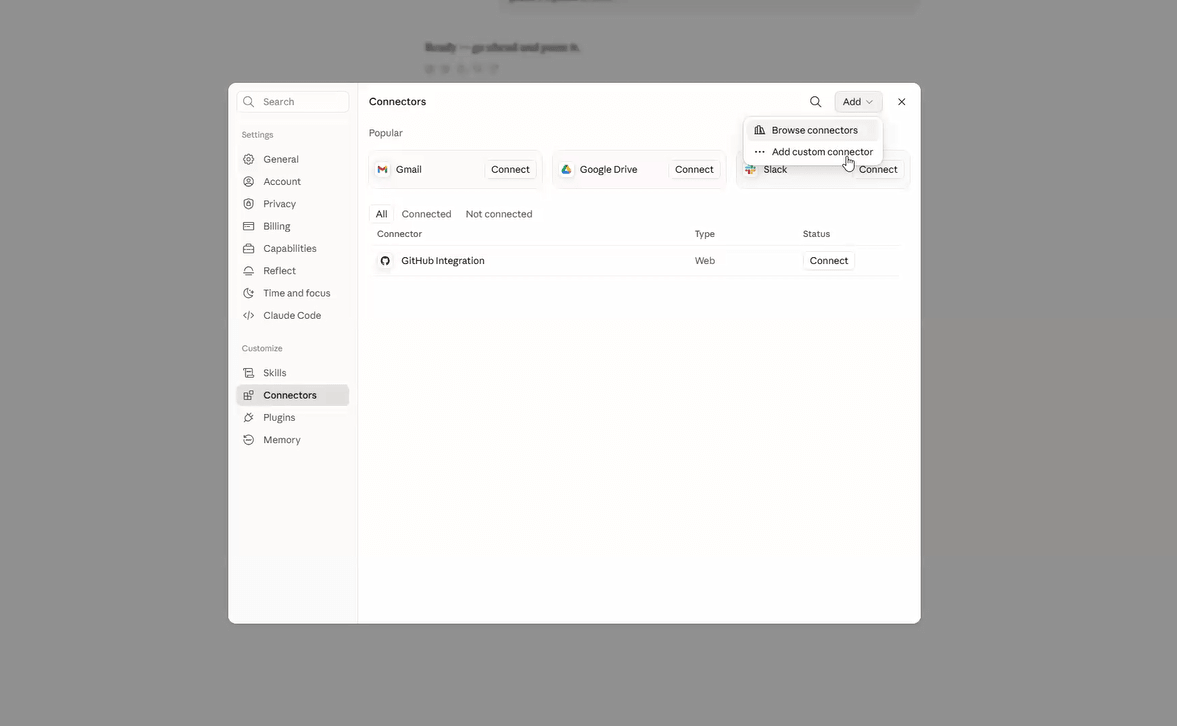
3. Enter the server URL: https://{your-account}/services/mcp
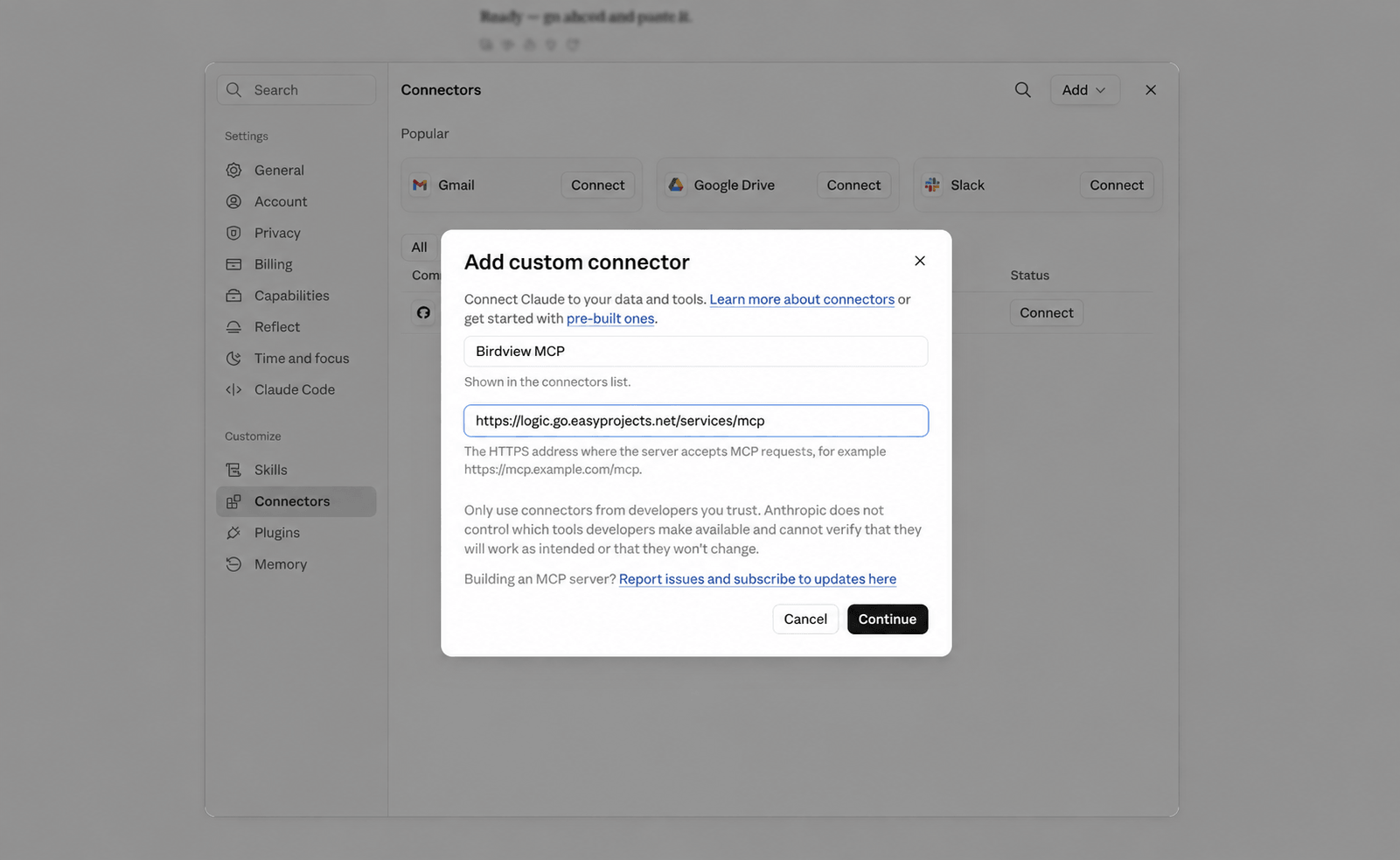
4. Set authentication to OAuth, then Connect.
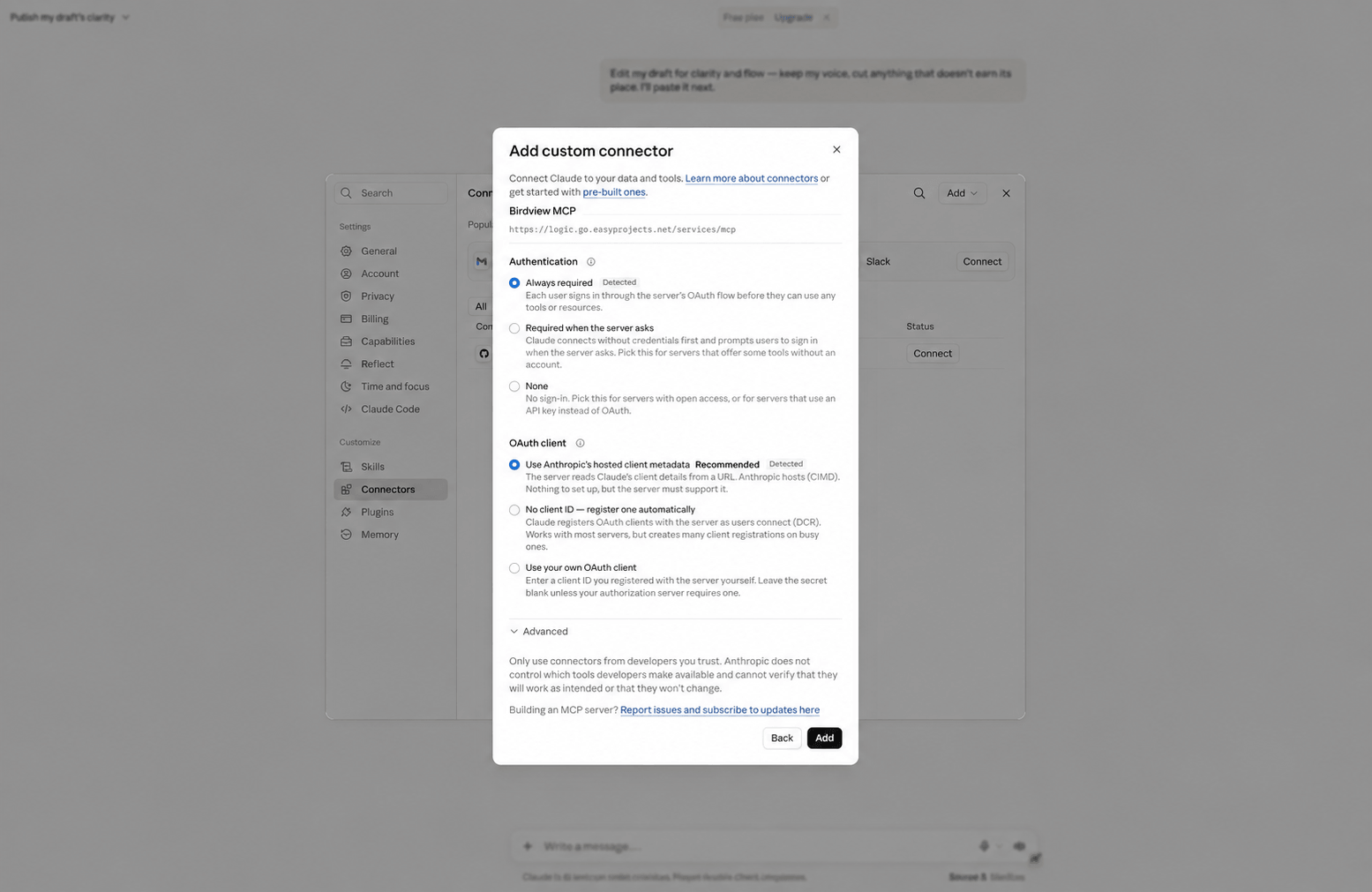
5. Sign in with your Birdview account and approve access.
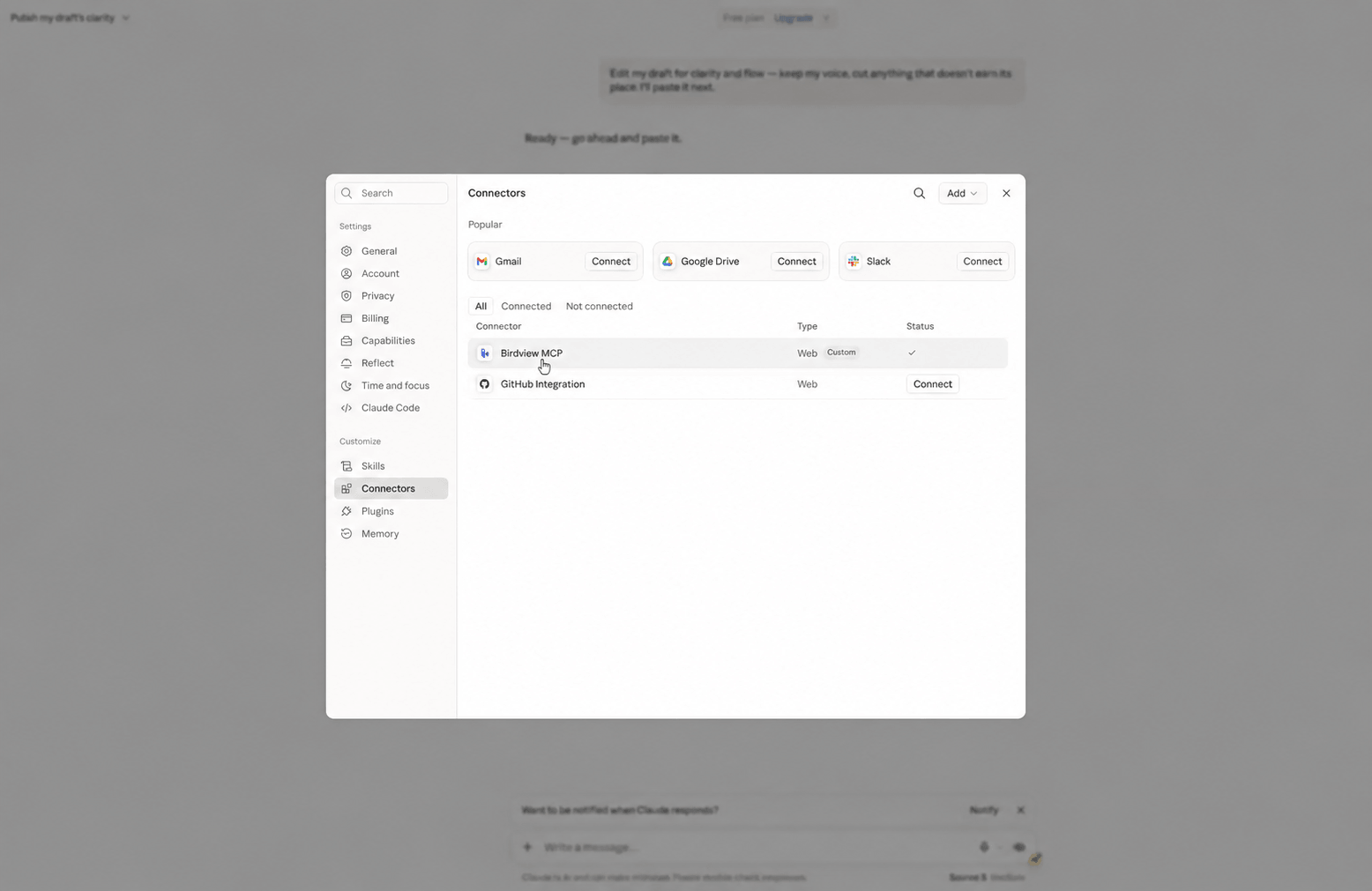
6. From the connector’s settings, you can review and adjust which actions it’s allowed to take, or scope it down to read-only if you’d rather approve changes manually at first.
We recommend setting this up from the web app rather than a desktop client while the connector is new; a couple of desktop install paths are still being ironed out.
In all cases, replace {your-account} with your Birdview account’s entire host name, the same one that appears in the web address you use to log in to Birdview (for example, johndoe.go.easyprojects.net).
If you use another AI client
Birdview MCP works with any client that supports the MCP standard, not only ChatGPT and Claude. Some clients support the same simple setup described above; others don’t support automatic client registration and need a manually registered OAuth client (a client ID and client secret) instead of the one-URL flow. If you’re setting this up for a client other than ChatGPT or Claude, reach out to support and we’ll help with the setup for that specific tool.
Getting help
If the connector doesn’t appear, doesn’t return results, or a corporate admin can’t enable it, Birdview’s support team can walk through account-specific setup, including for workspaces where Developer Mode or admin permissions are restricted.
FAQ
Does Birdview MCP give the AI assistant broader access than I have in Birdview? No. It signs in as you and is limited to exactly what your Birdview role can see and edit. It only has access to your data.
Can it submit my timesheet for me? No. Logged hours show up inside a project’s health summary, but Birdview MCP can’t submit or edit time entries or expenses.
What happens if I ask it to change a lot of tasks at once? Before a bulk change, it shows you what it matched and what it’s about to change. Changes affecting more than 50 tasks need an extra confirmation before anything is applied.
Is Birdview MCP itself an AI? No. MCP is a connector, not a model. It’s a bridge between an AI assistant (ChatGPT, Claude) and Birdview’s own API, exposing the same information and actions your Birdview account already has access to. It doesn’t add any AI processing, decision-making, or storage of its own, and it doesn’t send your data anywhere beyond the assistant you’re already using and Birdview itself. The AI model does the reasoning; MCP just gives it a defined, permission-scoped way to read from and write to your Birdview workspace.
Why don’t I see some tools or updates in Birdview MCP? ChatGPT and Claude don’t automatically refresh a connector’s list of tools. When we add a capability or fix something, you’ll need to manually refresh the connection, either by reconnecting the connector or by signing out and back into Birdview MCP, before your assistant can see the update. This is a limitation of the MCP protocol itself, not something specific to Birdview.