Ksenia Kartamysheva
 We’re happy to introduce Birdview Internal automations, a new way to automate routine work directly inside Birdview. Birdview Internal automations helps teams create simple “if this, then that” rules inside the platform, so routine project work happens automatically. Users can set a trigger, add optional conditions, and define one or more actions without writing code or relying on external automation tools.
With this update, teams can automate common Birdview-to-Birdview workflows, such as creating activities, updating project information, assigning users, adding messages, sending emails, or reacting to changes in projects, activities, time entries, expenses, and calendar dates.
Birdview Internal automations are available for all Birdview plans in public preview through Feature Labs.
Why it matters
Routine project work often depends on small manual steps: updating a status, notifying the right person, creating a follow-up activity, or assigning work when a project changes. These tasks are easy to miss when teams manage many projects at once.
Birdview Internal automations reduces manual effort by helping teams standardize repeatable workflows. Instead of relying on someone to remember the next step, teams can define the rule once and let Birdview run it when the right conditions are met.
This helps teams improve consistency, reduce delays, and keep project information up to date across the system. It is especially useful for teams that follow structured delivery processes, approval flows, handoffs, or recurring project management routines.
How it works
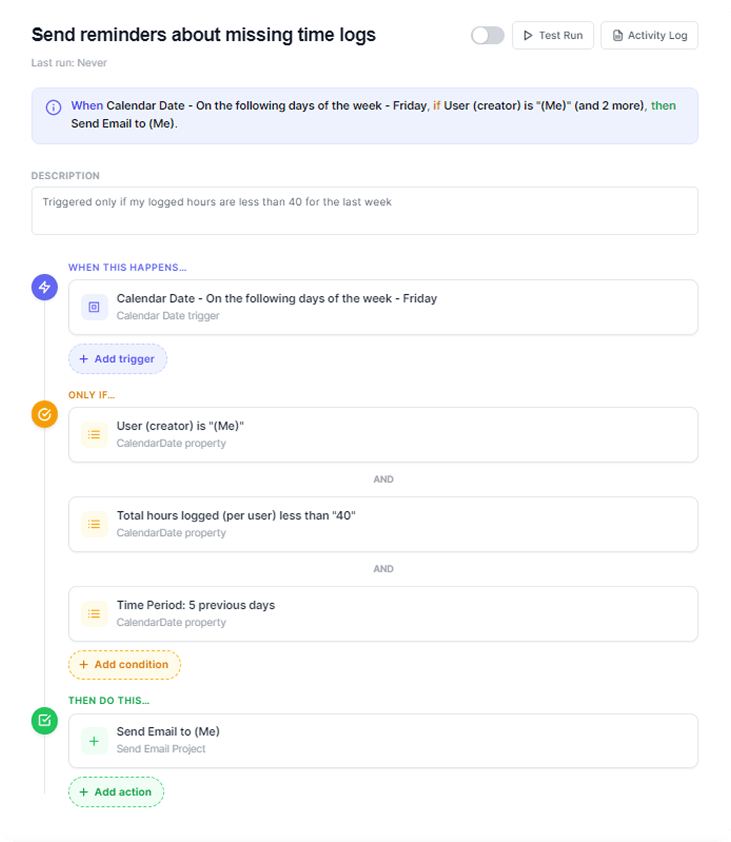
Birdview Internal automations follows a simple structure: Trigger → Conditions → Actions
A trigger defines when the automation starts. A condition refines when the automation should continue. An action defines what Birdview should do next. For example, when a new project is created, Birdview can check whether it belongs to a specific customer or portfolio, then create a set of activities or send a notification.
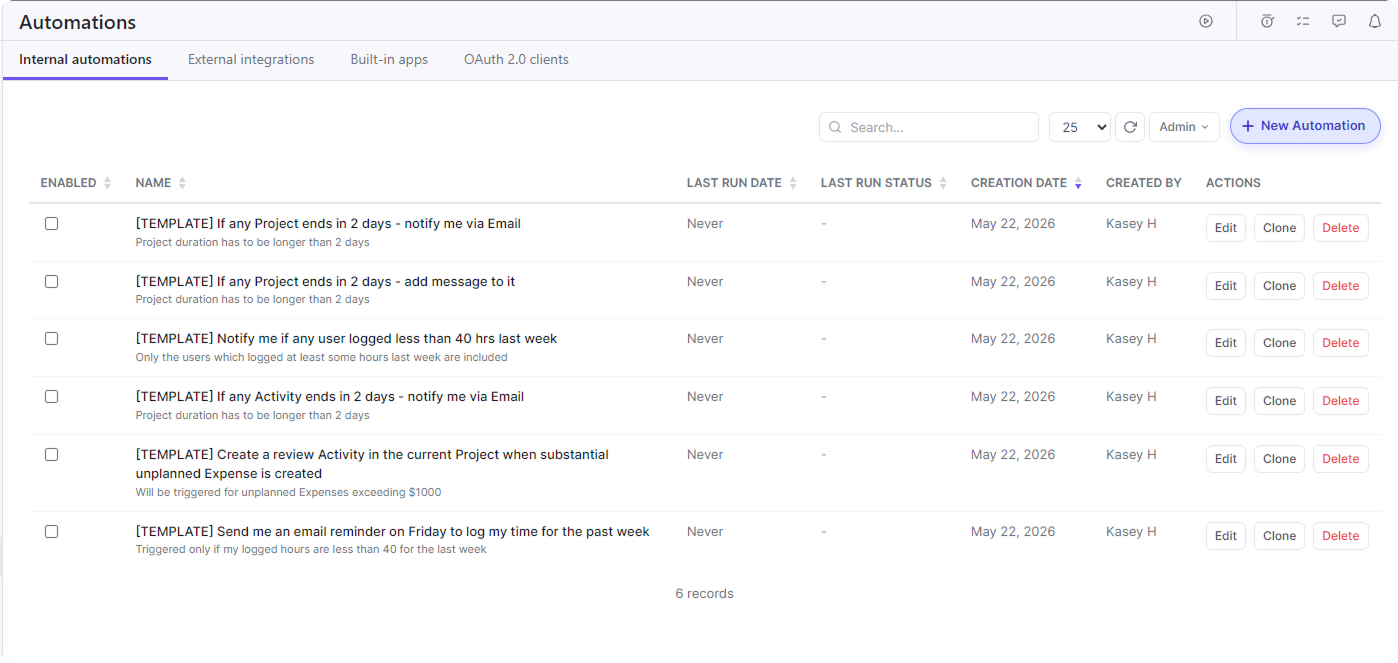
1. Open Automations
Go to Company settings → Automations → Internal automations.
From there, you can either open the automation builder to create a new automation from scratch or choose one of the pre-made automation templates. For new automation, fill in the automation name to make the rule easy to recognize later.
2. Select a trigger
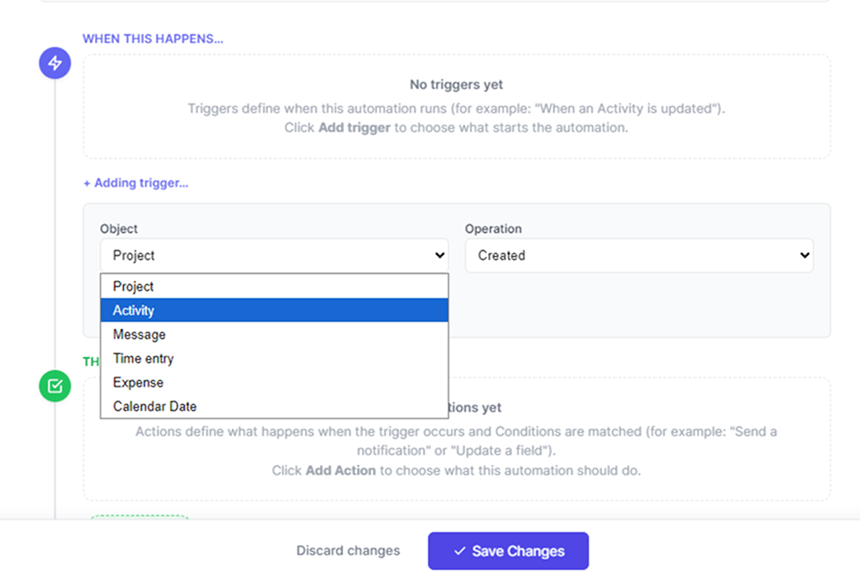
Choose what should start the automation.
Available triggers can be based on changes in Birdview entities such as projects, activities, messages, time entries, expenses, or calendar dates. For example, automation can start when a project is created, an activity is completed, an assignee changes, a time entry is added, or a specific date condition is reached.
You can also combine multiple triggers in a single automation, so the workflow runs when any of the selected trigger events happen.
3. Add conditions
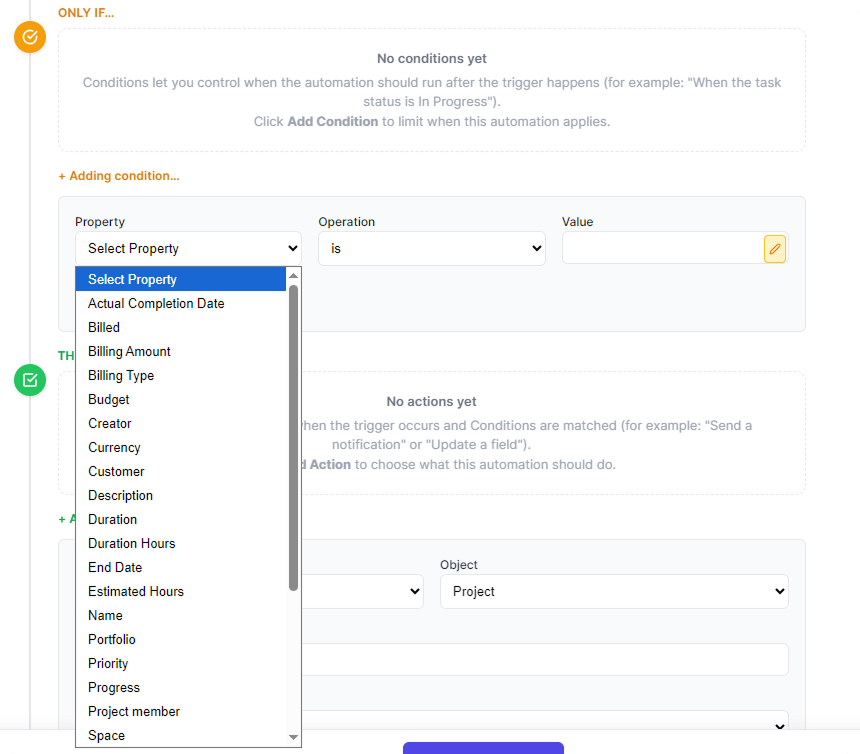
Conditions are optional, but they help make the automation more precise. You can also combine multiple conditions in a single workflow, so the automation runs only when all selected conditions are met.
For example, you can run an automation only when:
- a project is created in a specific space;
- an activity status changes from one value to another;
- an expense amount is greater than a defined value;
- a time entry is billable;
- an activity is scheduled to end in a specific number of days.
Birdview supports two main condition types: property value filters and property changes. A property value filter checks the current value of a field. A property change reacts only when a selected field changes from one value to another.
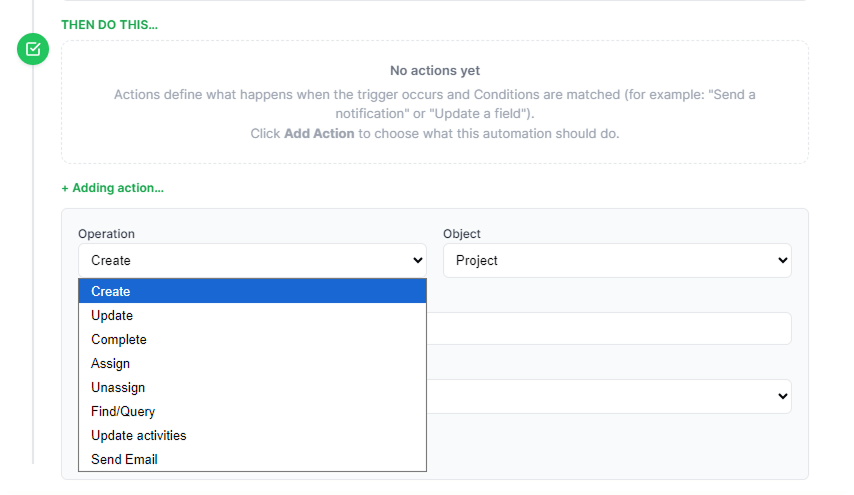
4. Add one or more actions
Next, define what Birdview should do when the trigger and conditions match.
Actions can include creating or updating projects, adding activities, assigning or unassigning users, completing activities, adding messages, creating time logs or expenses, finding projects or activities, updating project activities, or sending emails.
You can add multiple actions to one automation. Actions run in sequence and can use data from the trigger, such as project name, activity ID, custom field values, assignees, or related project details.
For email notifications, Birdview also supports dynamic macros that automatically insert project or activity data into the message content. This helps teams create more informative automated notifications without manually copying information between workflows.
Available macros can be selected directly from a dropdown list inside the email editor. For example:
- {Project.Name} – project name
- {Project.CreatorId} – ID of the user who created the project
Example notification: “A new project, {Project.Name}, has been created in the system. Project creator ID: {Project.CreatorId}.”
5. Test the automation steps
Before activating the automation, test the setup.
Trigger testing checks whether the trigger and conditions match the selected scenario. Action testing confirms that the selected action works as expected, such as creating an activity or sending a notification.
This helps teams review the rule before it starts running on active project data.
6. Save and activate the automation
Once the automation is ready, save it as either:
- Not activated, if you want to keep it as a draft
- Activated, if you want it to start running
Activated automations listen for matching events and run the configured actions when the rule conditions are met. Disabled automations do not listen to events or schedule time-based runs.
7. Review history and errors
Each automation includes history and error visibility, so users can see when the rule was triggered, which actions were executed, whether each step succeeded or failed, and any error details.
This makes it easier to understand what happened, troubleshoot automation issues, and adjust rules when needed.
Example automation
Here is a simple example:
Trigger: A new project is created.
Condition: Project creator is Birdview Administrator.
Action: Move the project to the Marketing portfolio.
In this case, the automation runs only when the project creator matches the condition. If another user creates the project, Birdview does not perform the action.
What to keep in mind
Internal automations are designed only for Birdview-to-Birdview workflows. If your team needs to automate workflows between Birdview and external systems, you can use external Birdview workflow automation integrations to connect Birdview with other business applications and automate cross-platform processes.
Some actions also use debounce logic. This means Birdview waits briefly before running the action when rapid changes happen to the same entity. If another matching change happens during that time, the previously scheduled action is replaced, and the automation runs once using the latest entity state.
Learn more about internal workflow automation and how it gives teams a practical way to reduce repetitive work, improve process consistency, and keep project workflows moving without custom development.