Ksenia Kartamysheva
 Tracking time is essential, but trusting it is critical. Birdview already supports time log approvals, helping teams review and validate entries before they are used for billing, payroll, or reporting.
With this update, we’re extending that capability by introducing Multi-step time log approvals – a more structured and flexible approval workflow. It allows teams to define multiple approvers, apply different approval logic, and better control how time entries move from submission to final approval.
The new two-step approval workflow is fully available for:
- Birdview Project Management Enterprise
- Birdview PSA Enterprise
The original time log approval functionality remains available for:
- Birdview Project Management Enterprise
- Birdview PSA Team
- Birdview PSA Enterprise
Why it matters
As teams grow, time tracking becomes more complex and harder to control.
While Birdview already supports time log approvals, single-step approvals can be limiting when multiple stakeholders need to review time entries or when approval responsibilities need to be clearly defined.
Without a more structured approval process:
-
- Time entries may be submitted with errors or missing details
- It can be unclear who is responsible for final approval
- Managers lack visibility into what’s been reviewed vs. what hasn’t
- Finance and operations teams may rely on unverified data
- Teams waste time chasing corrections after the fact
Multi-step time log approvals address these gaps by adding more structure and control to the existing process. With this feature, you can:
-
- Define clear approval responsibility across roles (e.g., Project Managers, Reporting Managers)
- Ensure all time entries are reviewed before approval
- Track approval progress through statuses
- Provide feedback through structured rejection and resubmission
- Support different workflows with flexible approval types (sequential, parallel, or single-step)
- Reduce manual follow-ups with automated notifications
- Give teams a clear process for submission, feedback, and correction
As a result, time data becomes more reliable, approval workflows become clearer, and teams spend less time resolving issues after the fact.
How it works
1. Enable Multi-step time log approvals
To get started, go to:
Company Settings → Advanced Settings → Time tracking policy
Turn on the feature to activate the approval workflow across your account.

Once enabled:
- All new time entries start in Draft status
- A Submit button appears in timesheets
- Approval statuses and filters become available
2. Configure your approval workflow
Birdview gives you full control over how approvals work.
Choose approval type:
- Initial approval – Any assigned approver can approve
- Parallel approval – All approvers must approve (in any order)
- Sequential approval – Approvers follow a defined order (e.g., Project Manager → Reporting Manager)
Define approvers:
You can assign approvers based on:
- Reporting Manager (from user profiles)
- Custom project fields (e.g., Project Manager)
You can also combine multiple sources to build a multi-level approval flow.
3. Submit time entries
When a team member logs time:
- Entries are saved as Draft
- They can edit freely until ready

Once ready, they click Submit:
- Entries move to Submitted
- Editing is locked
- Approvers are automatically assigned and notified
4. Review and approve
Managers can review submitted time using filters. They can then:
- ✅ Approve entries
- ❌ Reject entries (optionally adding a reason)
Depending on your setup:
- In parallel approval, all approvers must approve
- In sequential approval, the next approver is notified only after the previous one approves
You’ll also see visual indicators showing who has already approved.
5. Handle rejections and resubmissions
If an entry is rejected:
- It moves to Rejected
- It becomes editable again
- The user can review feedback, make changes, and resubmit
Each resubmission restarts the approval cycle.

6. Final approval and locking
Once all required approvals are completed:
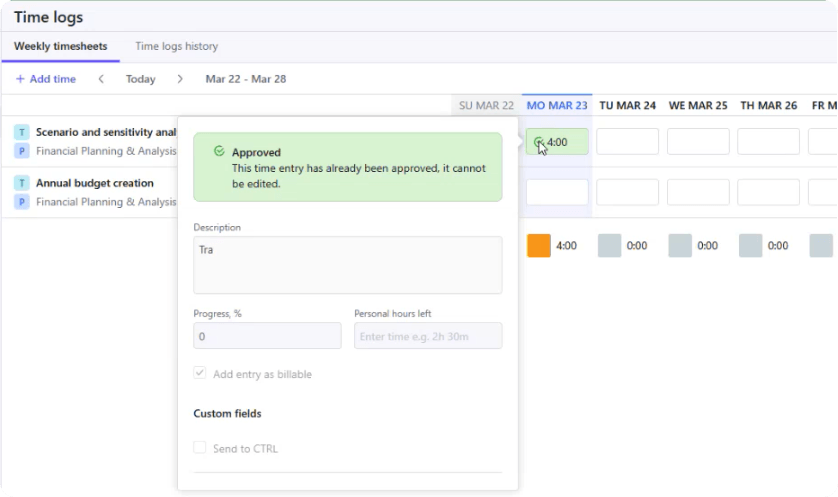
- Entries move to Approved
- They become fully locked
If changes are needed later:
- Depending on the selected approval type, an approver or both approvers must revert the approval
- The entry goes back to Draft
- The approval process starts again
What to keep in mind
- No disruption to existing workflows: If the feature is turned off, the original time log approval process applies. Users with the “Edit all time entries” permission can approve time logs, as before. Previously approved time logs remain unchanged.
- Flexible approval logic:
- One or multiple approvers
- Automatic approval if no approvers are assigned
- Notifications are smartly grouped to avoid overload
- Approval status does not affect project metrics:
- All time entries are still included in cost and billing calculations, regardless of status
- Partial approvals are supported, giving visibility into progress